
How to import participants
There are two ways you can import participants to your Participant Library:
- automatically by integrating your HRIS (People Management system) with AskYourTeam
- filling out and uploading our Participant Import Template.
This article focuses on using the Participant Import Template. You can download this .xlsx (Excel) file from the Participant Library when you select Import. Your template already has a column for every demographic in your library, so what you download reflects your own organisation rather than a generic example. Use the example line within it as a guide to ensure your participant data is formatted correctly. But don't forget to delete the example line before you import it!
Make sure to check your file before you import
There are a couple of checks we recommend doing before importing a participant file. Although the AskYourTeam system will pick up errors, taking a quick look beforehand can help you streamline the process.
Here are some common things to check:
- formatting of email address and/or mobile numbers
- formatting of column headings
- that there are no duplicate participant rows (records)
- that all information is on one spreadsheet
- that all macros or formulas have been removed from the spreadsheet
- that any blank cells are deliberate. An empty cell clears what is already in your library. If you want to leave something untouched, remove the whole column from your file rather than leaving the cells empty. The Check step warns you before this happens and names who is affected.
- that the ID/Email/Mobile of the participants in the library (if any) matches the corresponding participant in the import file.
💡 Need help with structuring data or formatting? Take a look at our Participant Import Template guide.
Where to import your file
You can import your participant import file in the Participant Library.
To get there:
- Select Library from the left menu.
- Select Participants.
- Select the Import button at the top right to load the grey file drop zone.
- Drag your file onto this grey area or click it to navigate through your folders.


What happens after you upload
The import runs in five steps, shown across the top of the screen so you can always see where you are.
- Choose a file. Drag your file in or click to browse.
- Check. We read every row and compare it against your library. This is where anything we noticed is listed. Nothing has changed in your library at this point, and nothing will until the last step.
- Review. What this import will actually change: how many participants are being added, how many updated, and anything being created along the way.
- Import. The changes are applied. A large file can take a few minutes.
- Done. A summary of what happened.
If your file has nothing worth reporting, the Check step is skipped and you go straight to Review. That is deliberate, not a step being missed out.

Errors and warnings
The Check step tells you everything at once, in the order your spreadsheet lists it, so you can work down your file a single time.
Errors stop the import. The file has something in it we cannot store, so it has to be fixed and uploaded again.
Warnings do not stop anything. They are things worth knowing that we cannot decide for you, like a group too small to report on. You can carry on past them.
Both are shown together, even when there are errors. You will not fix the errors, re-upload, and only then discover the warnings.
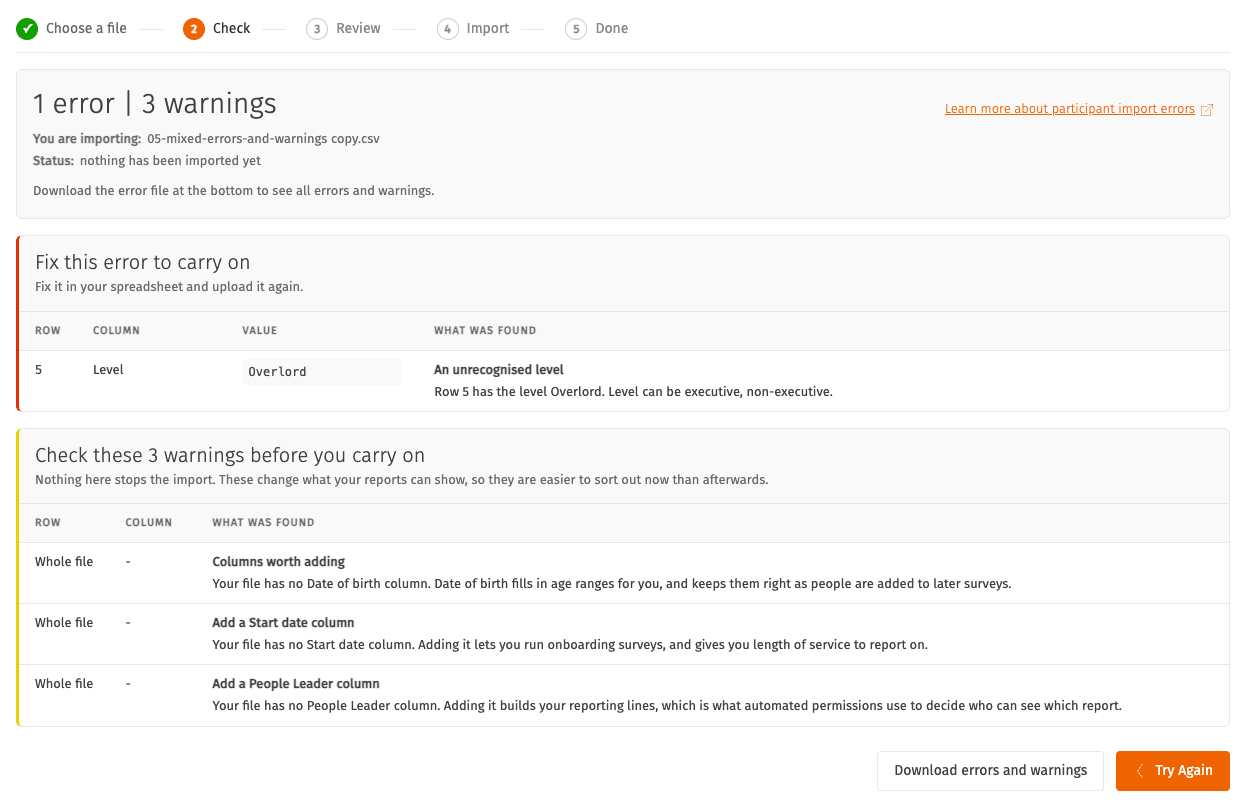
The table shows the first twenty rows. If there are more, use Download errors and warnings at the bottom of the screen for the complete list, with every row and the exact value in it.
💡 Every error and warning is listed, with what it means and how to fix it, in Participant import errors and warnings, and how to fix them. For what the Review step shows you before you commit, see Participant import confirmation messages.