
Linked Demographics
What are linked demographics
Linked demographics let you filter one demographic question by the answer to another, so participants only see the options that are relevant to them.
For example, if a participant selects "Sales" for "Which division do you work in?", they only see Sales departments when asked "Which department are you in?".
Before you start
- Both demographics need to be on the survey already.
- Linked demographics can only be created or edited on draft or pending surveys. You cannot change them once a survey is active.
How to create a linked demographic
- Open your survey and go to the Demographics tab.
- Scroll down to Advanced demographics.
- Click Create new link.
Step 1 of 3: choose your two questions
- Under Choose the first question, pick the demographic participants answer first.
- Check the wording in Question participants see. This comes from your demographic library. Editing it here saves it back to the library, so your next survey keeps the same wording. AskYourTeam's recommended demographics cannot be reworded.
- Under Choose the follow-up question, pick the demographic you want filtered. Its options will change based on the first answer.
- Check its wording the same way, then click Next.
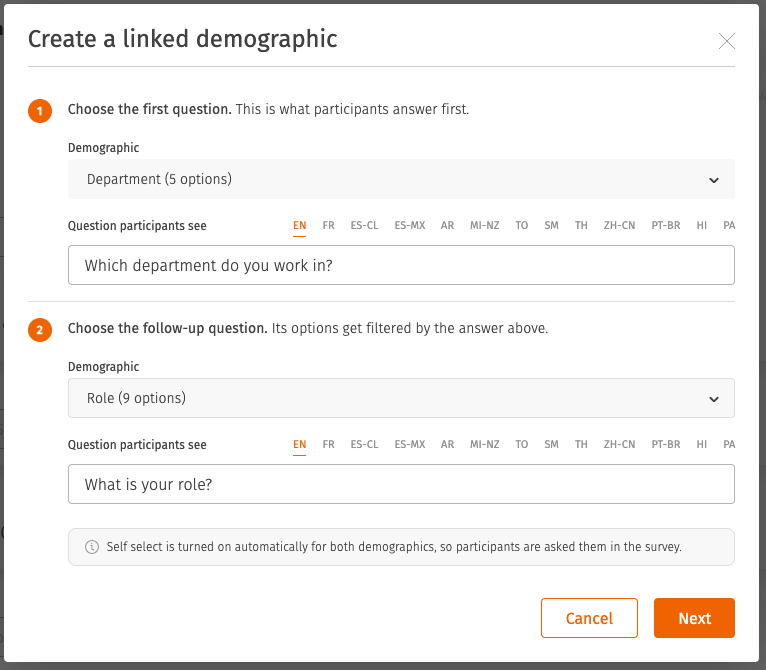
Both demographics have self select turned on automatically, so participants are asked them in the survey.
Step 2 of 3: link the options
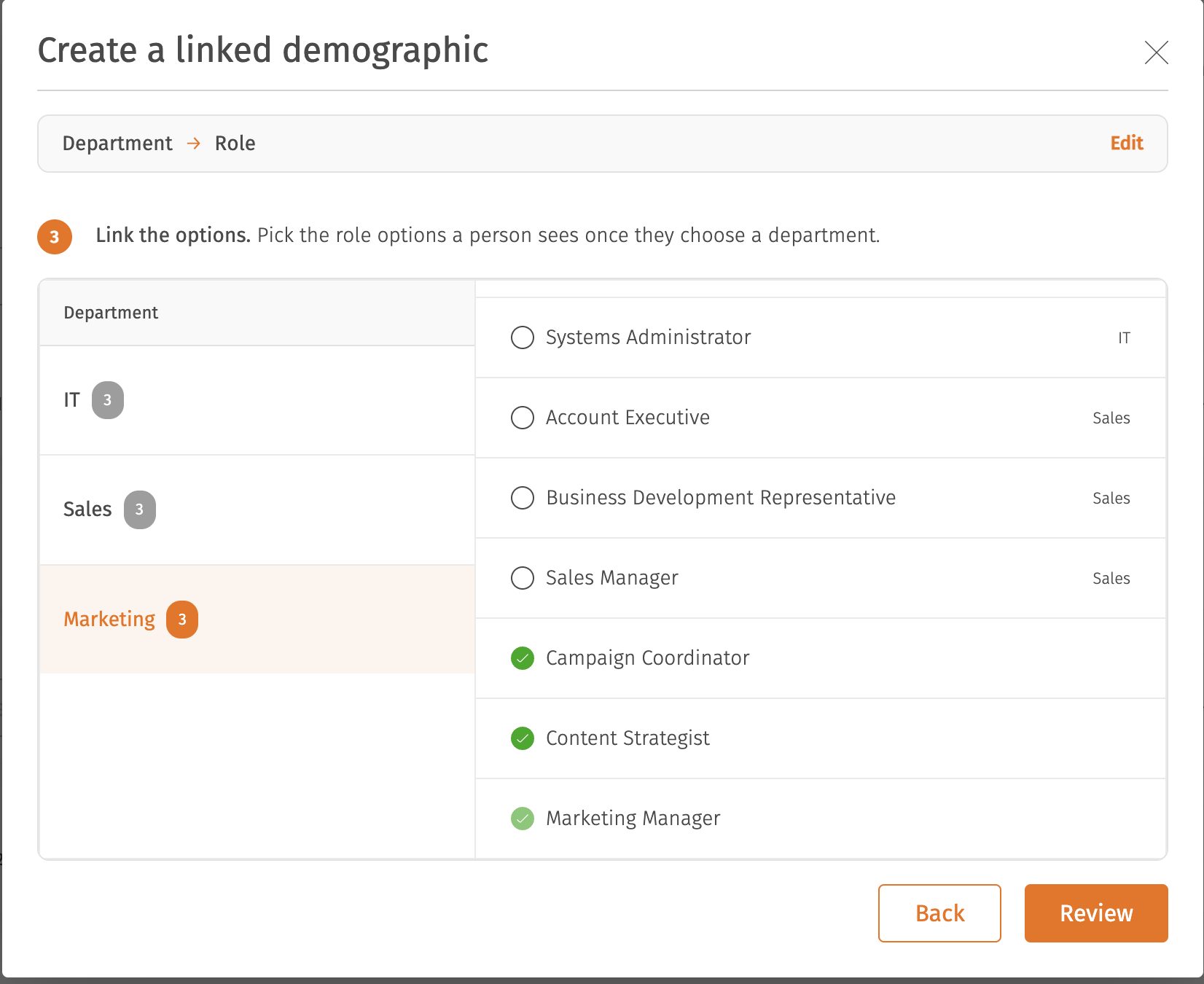
Pick an answer on the left, then tick the follow-up options someone should see after choosing it. Repeat for each answer.
- The count beside each answer shows how many options are linked to it so far.
- If another answer already leads to an option, it is noted beside that option. Sharing an option between answers is fine.
- You do not have to link every answer, but read the warnings in step 3 before you decide to leave one empty.
Click Review when you are done.
Step 3 of 3: check the link
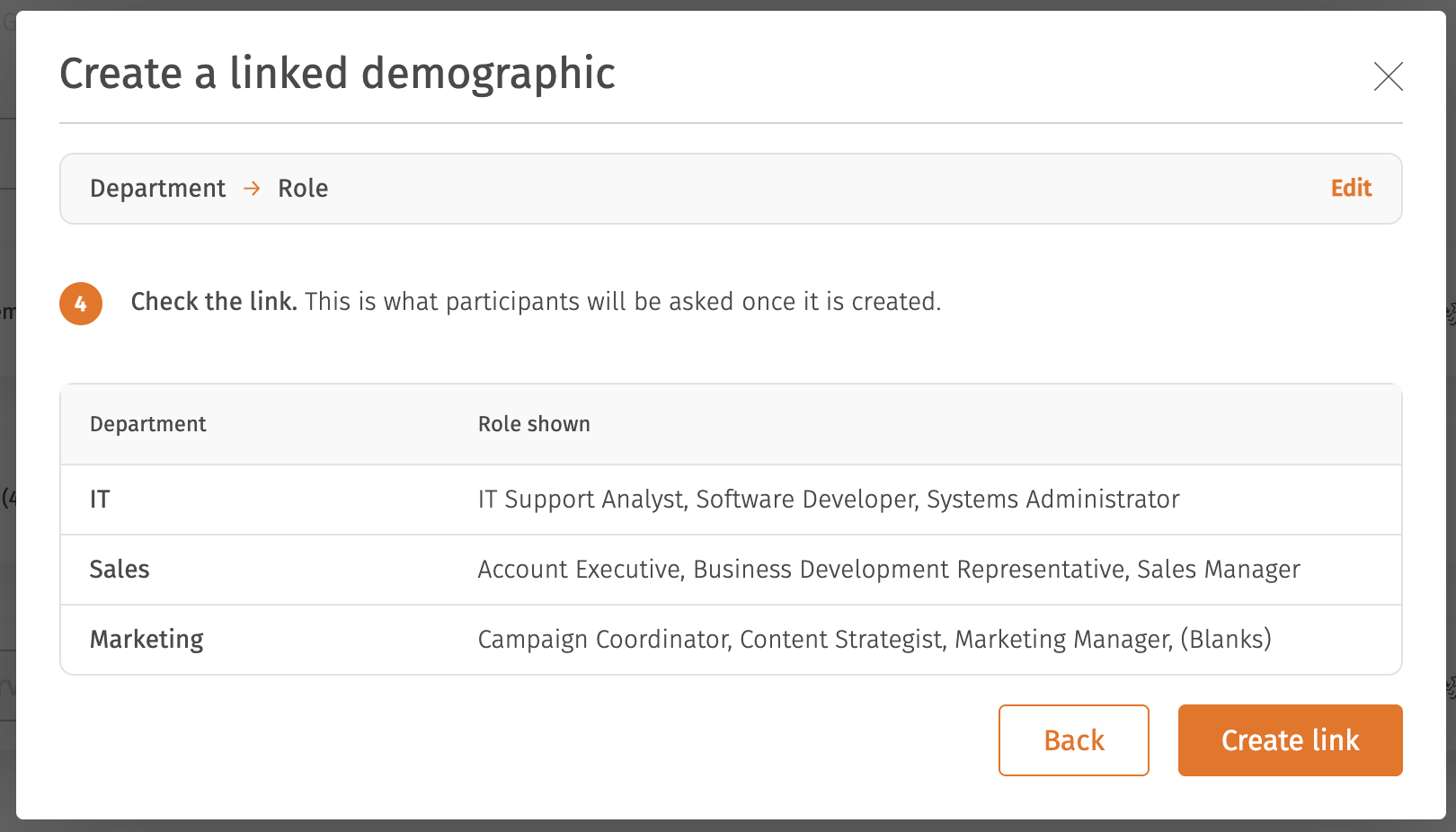
The review step shows every answer and the options it leads to, and warns you about two kinds of gap:
- "Nothing linked, so this will not appear in the [first question] question." That answer will be missing from the first question entirely, so nobody can select it.
- "[N] [follow-up] options are not linked to any [first question]", with the note that they "will never be visible to any respondents."
Both are worth reading rather than skipping. An answer quietly disappearing from the first question is the most common surprise with this feature.
Click Create link to save. The link is built in the background and takes a few seconds. You will see a progress indicator, and a confirmation once it is done.
How to edit a linked demographic
- Go to the Demographics tab and scroll to Advanced demographics.
- Find the link and click Edit.
- Change either demographic or any of the connections, then click Save changes.
How to delete a linked demographic
- Go to the Demographics tab and scroll to Advanced demographics.
- Find the link and click Delete.
- Confirm.
Deleting a link puts both demographics back the way they were, including their self select setting.
Self select and linked demographics
A link only works if participants are asked both questions, so setting one up turns self select on for both demographics.
While the link exists you cannot turn self select off for either one. The toggle is greyed out with a note explaining why: "Part of a linked demographic, so participants have to be asked it. Delete the link to turn self select off."
Delete the link and both demographics go back to whatever they were set to before.
What participants see
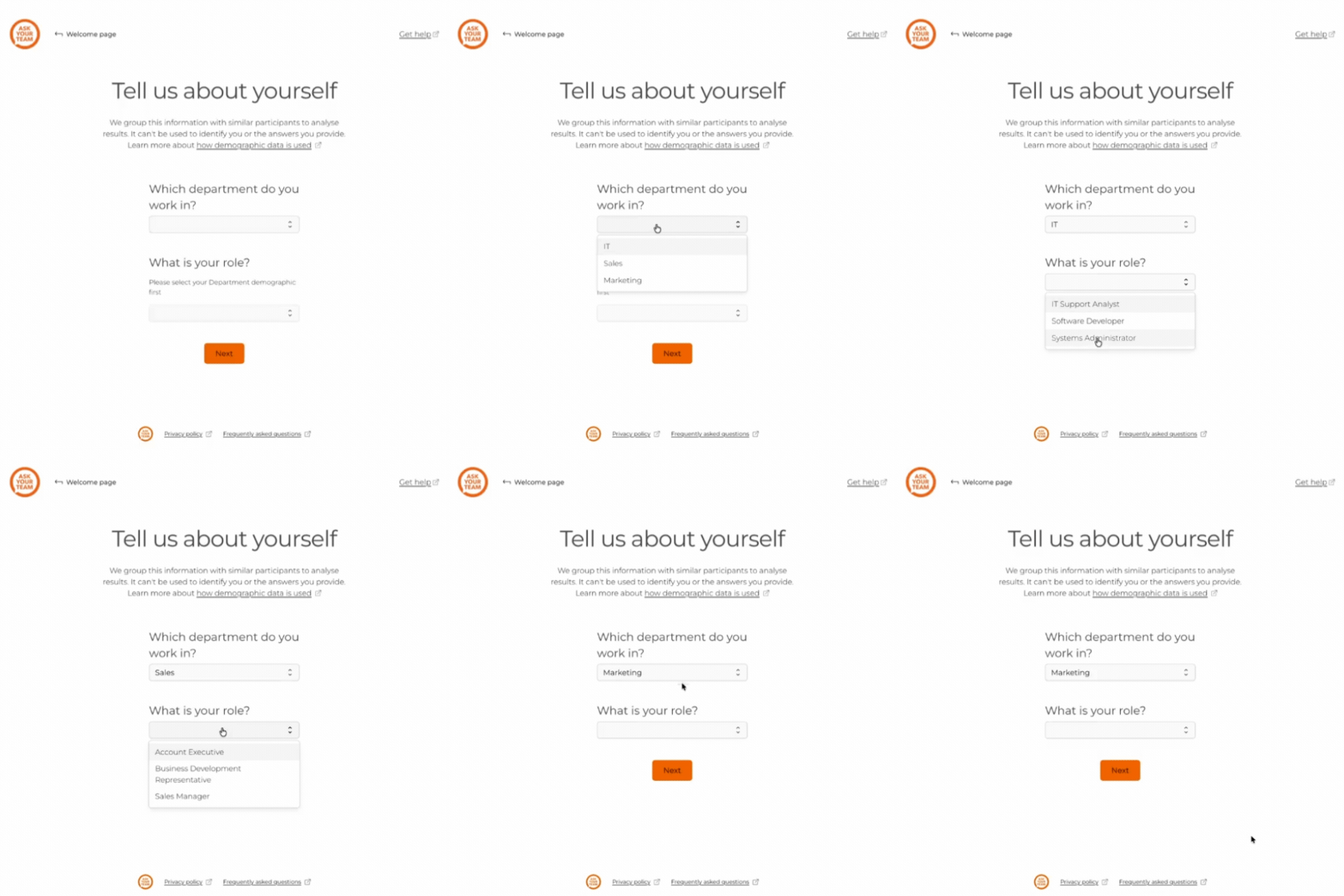
- The participant is asked the first question and sees every answer that has options linked to it.
- After they answer, the follow-up question appears showing only the options linked to their answer.
Example scenarios
Departments and teams
- First question: "Which department do you work in?"
- Follow-up question: "Which team are you part of?"
- Marketing leads to Digital Marketing, Content Marketing, Brand Management
- Engineering leads to Frontend Development, Backend Development, DevOps
Regions and locations
- First question: "Which region do you work in?"
- Follow-up question: "Which city or area do you work in?"
- Auckland leads to Auckland CBD, North Shore, Manukau
- Hawke's Bay leads to Napier, Hastings, Waipawa
Tribal areas and Iwi
- First question: "Which tribal area do you affiliate with?"
- Follow-up question: "Which Iwi do you identify with?"
- Te Tai Tokerau (Northland) leads to Ngāpuhi, Te Aupōuri, Te Rarawa
- Waikato-Tainui leads to Ngāti Hauā, Ngāti Tūwharetoa, Ngāti Raukawa